Run Mobile Agents with Free NVIDIA Models
May 10, 2026 · Team Supr
If you want to run OpenClaw-style agents on your phone with free NVIDIA-hosted models, this is the easiest setup to start with.
You will create a free API key on NVIDIA Build, pick a model with tool-calling support, and connect that key inside Supr. Once it is connected, your mobile agents can run on NVIDIA's hosted model endpoints without managing your own GPU.
What you need
- A NVIDIA account
- Supr installed on your phone
- A model on NVIDIA Build with Free Endpoint and Tool Calling support
Install Supr first if you have not already:
Step 1 - Open NVIDIA Build
Go to build.nvidia.com and click Login.
If you already have a NVIDIA account, sign in and skip to the Models step.
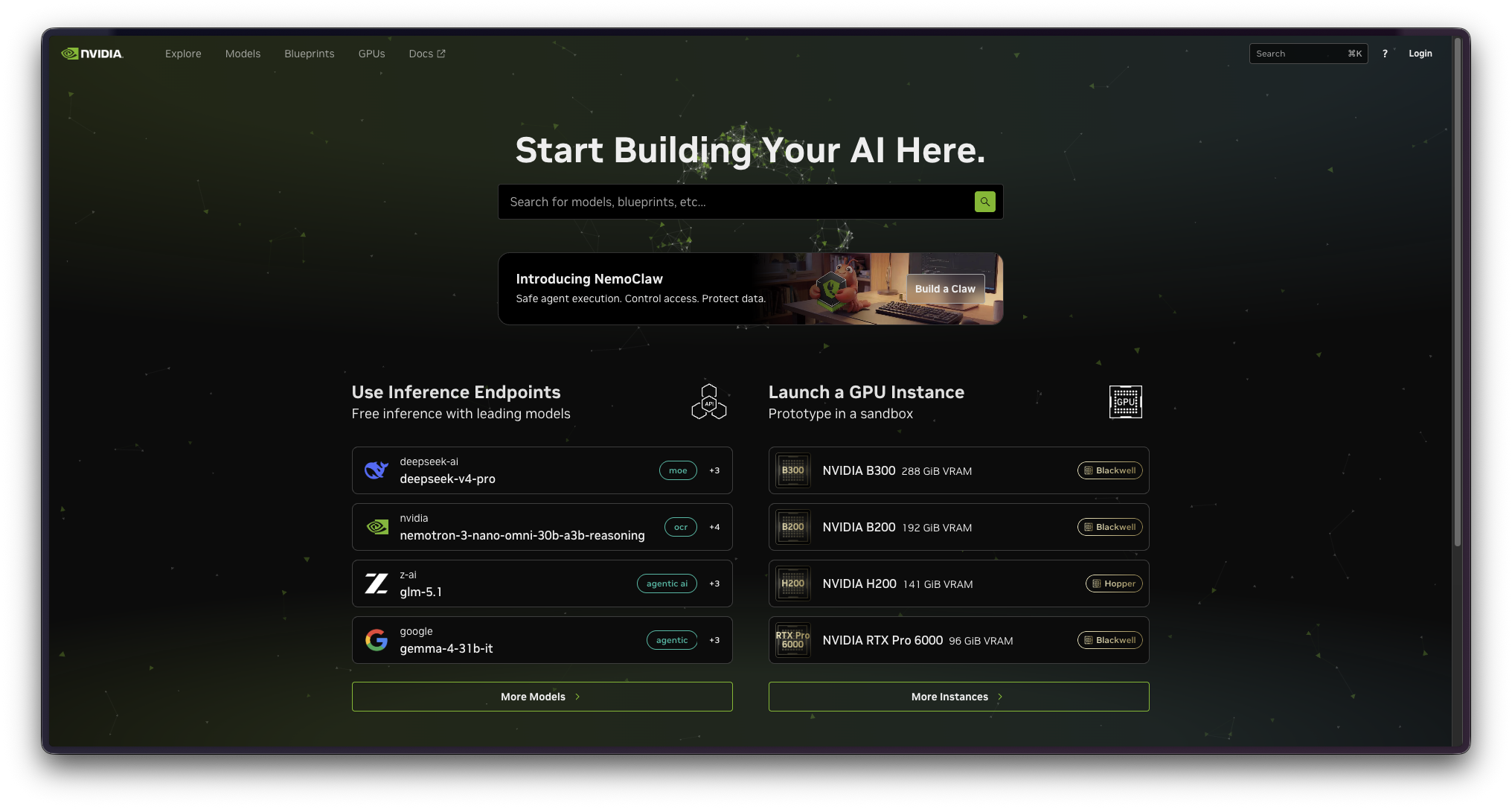
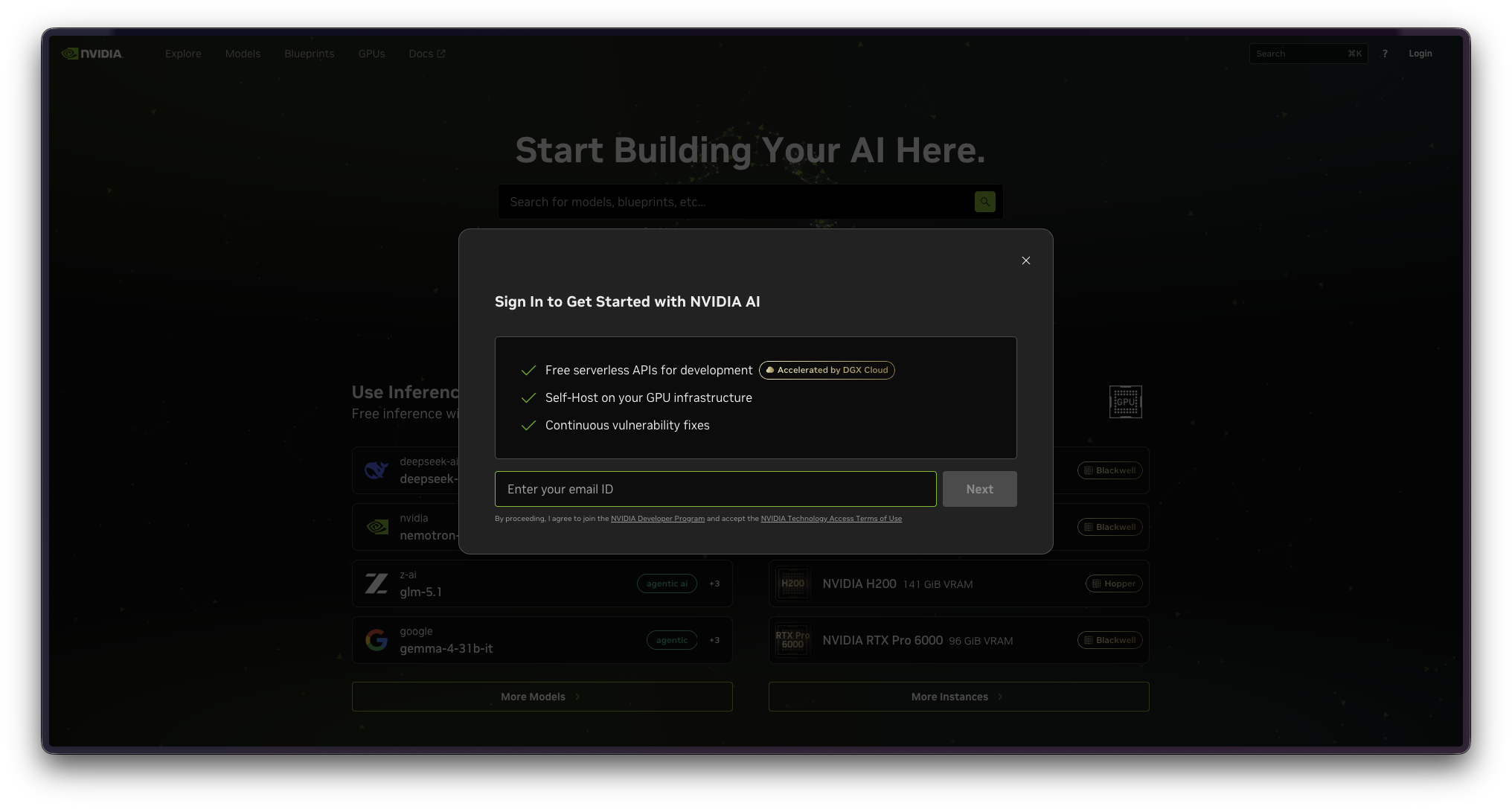
Step 2 - Enter your email
Enter the email address you want to use for your NVIDIA account.
Use an email inbox you can access immediately, because NVIDIA will send a verification code during setup.
Step 3 - Create your account
If you do not have an account yet, complete the account creation form.
After you submit the form, check your inbox for the verification code.
Step 4 - Verify your email
Copy the code from your inbox and paste it into the NVIDIA verification screen.
Once the email is verified, continue through the registration step and click Submit.
Step 5 - Add a cloud account name
NVIDIA may ask you to provide a cloud account name.
Add a simple name you will recognize, then continue. This is just the account label NVIDIA uses for your Build/NIM access.
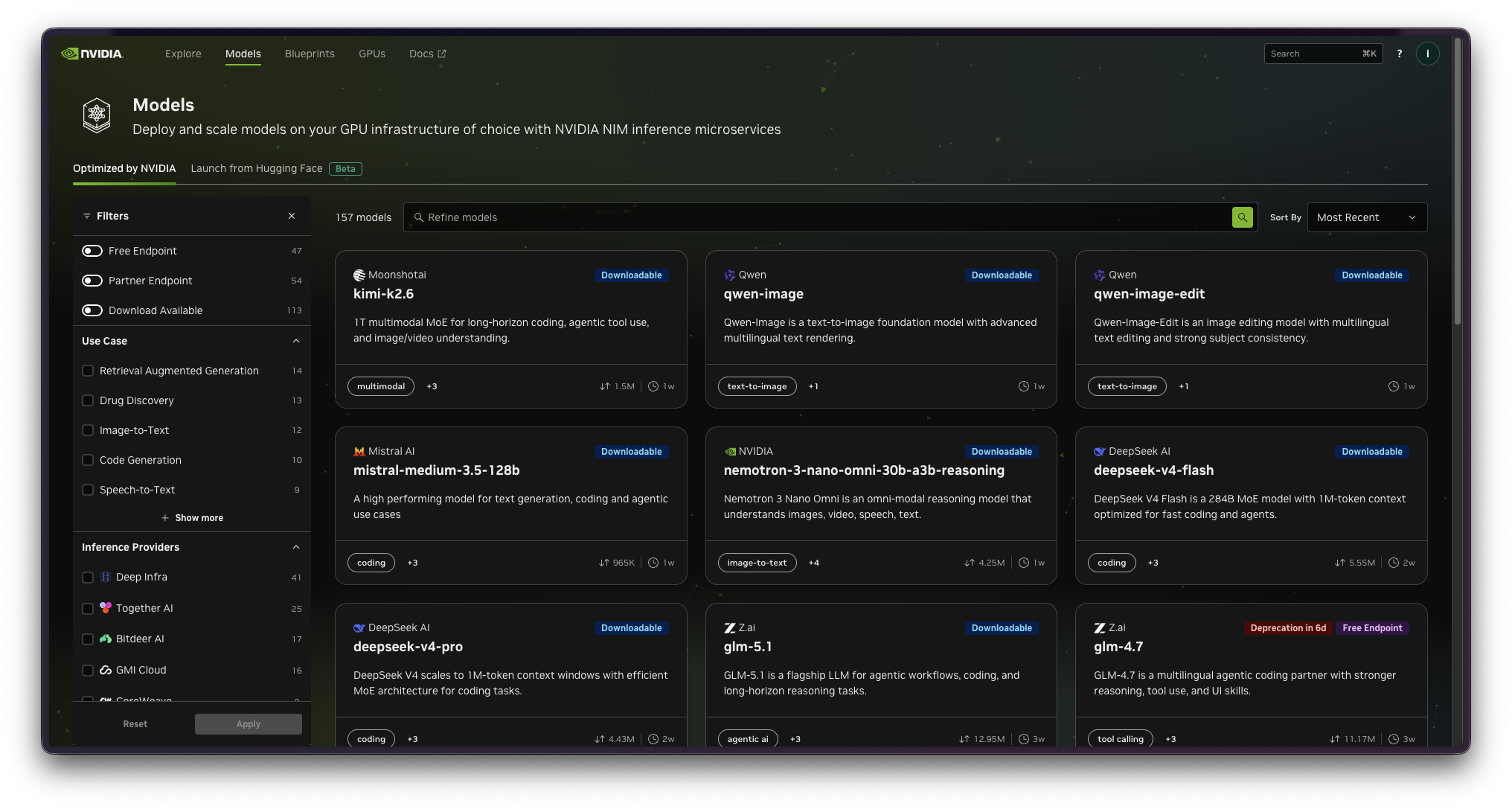
Step 6 - Open Models
Go to the NVIDIA Build Models page.
This is where NVIDIA lists hosted and downloadable model endpoints.
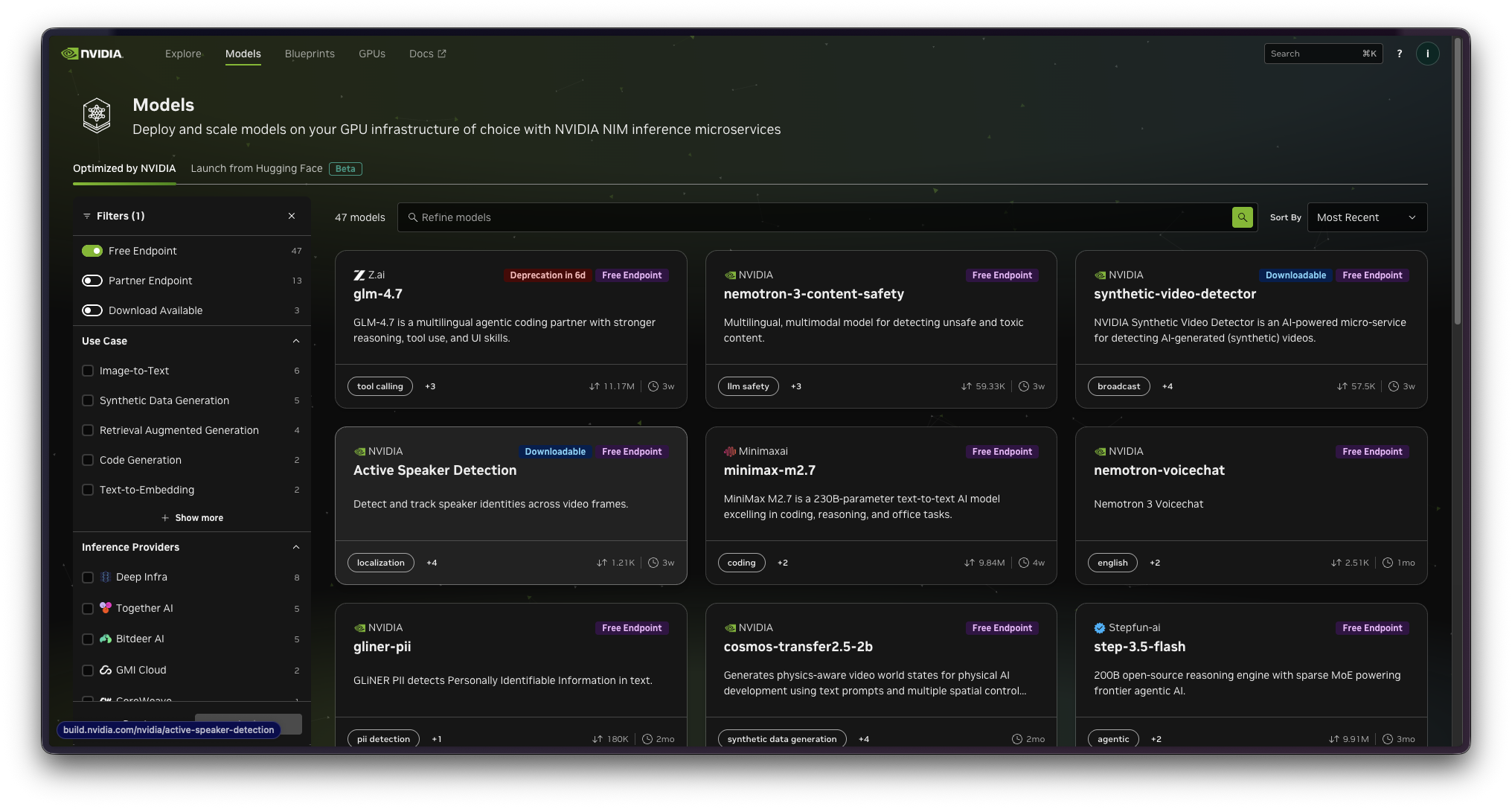
Step 7 - Filter for free endpoints
Turn on the Free Endpoint filter and click Apply.
This keeps the model list focused on endpoints you can test without setting up your own infrastructure.
Step 8 - Pick a tool-calling model
Choose a model that supports Tool Calling.
For most agent workflows, GLM-4.7 is a solid starting point when it is available. If GLM-4.7 is not available in your region or has changed status, pick another free endpoint that clearly lists tool-calling support.
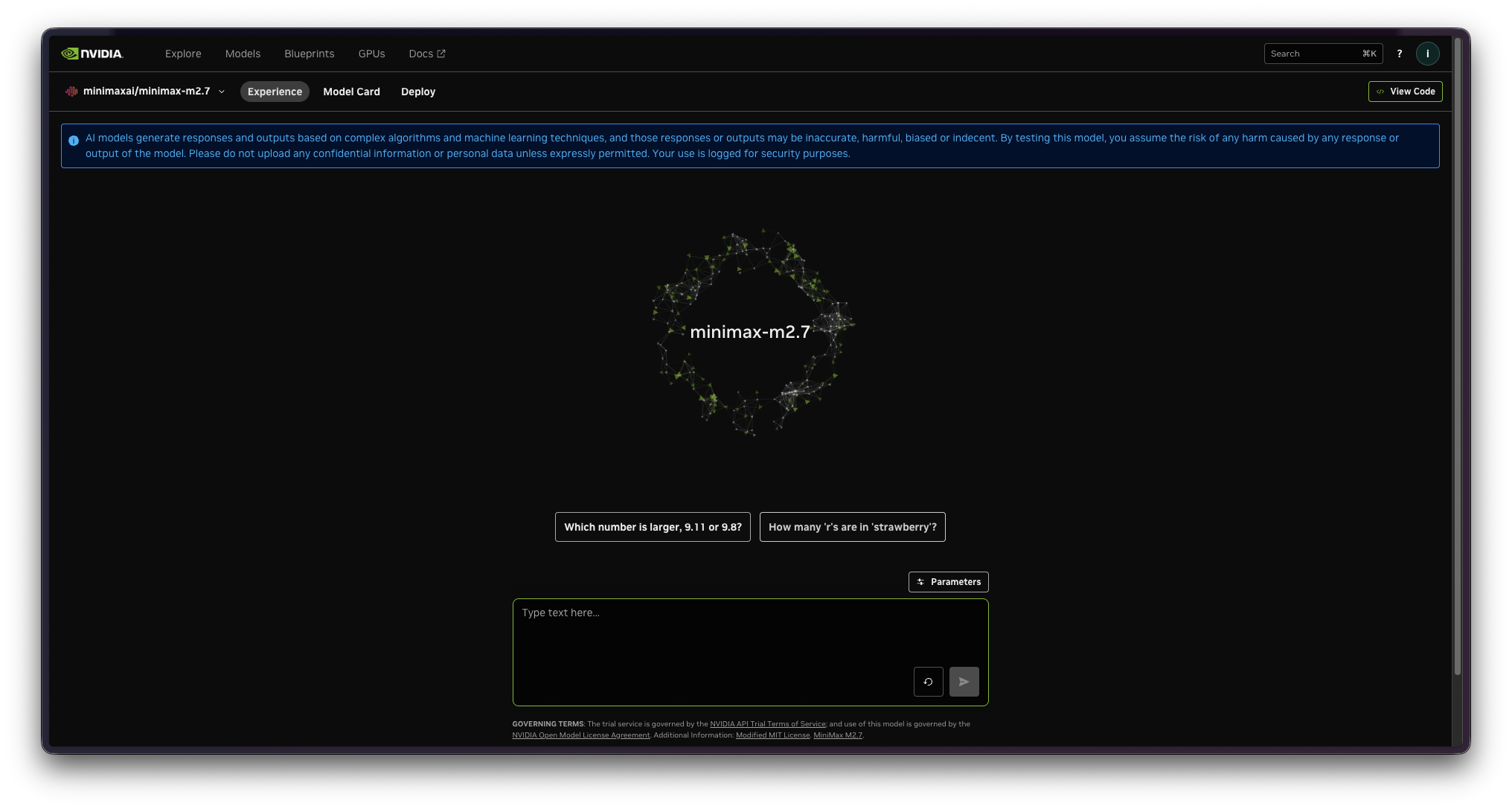
Step 9 - Acknowledge model access
Open the model page and click Acknowledge and Continue.
This confirms the model terms and unlocks the next setup screen.
Step 10 - View the code sample
Click View Code.
NVIDIA will show the endpoint details and a sample request for the selected model.
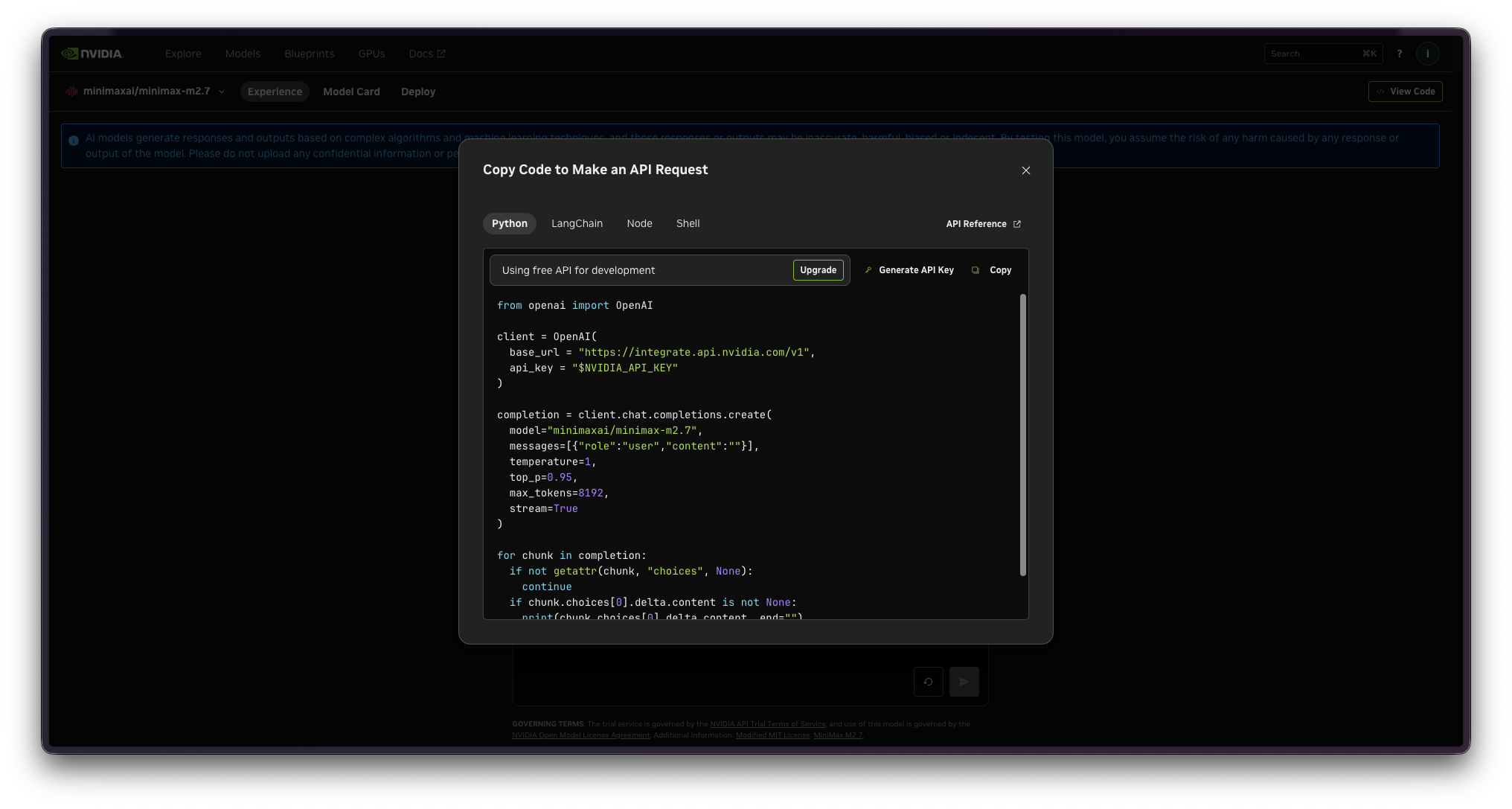
Step 11 - Generate your API key
Click Generate API Key and copy the key.
You can also manage keys from NVIDIA Build API Keys.
Keep this key private. Treat it like a password.
Step 12 - Connect NVIDIA inside Supr
Now switch to Supr on your phone.
Tap Deploy Agents, choose NVIDIA, paste the API key, and tap Connect.
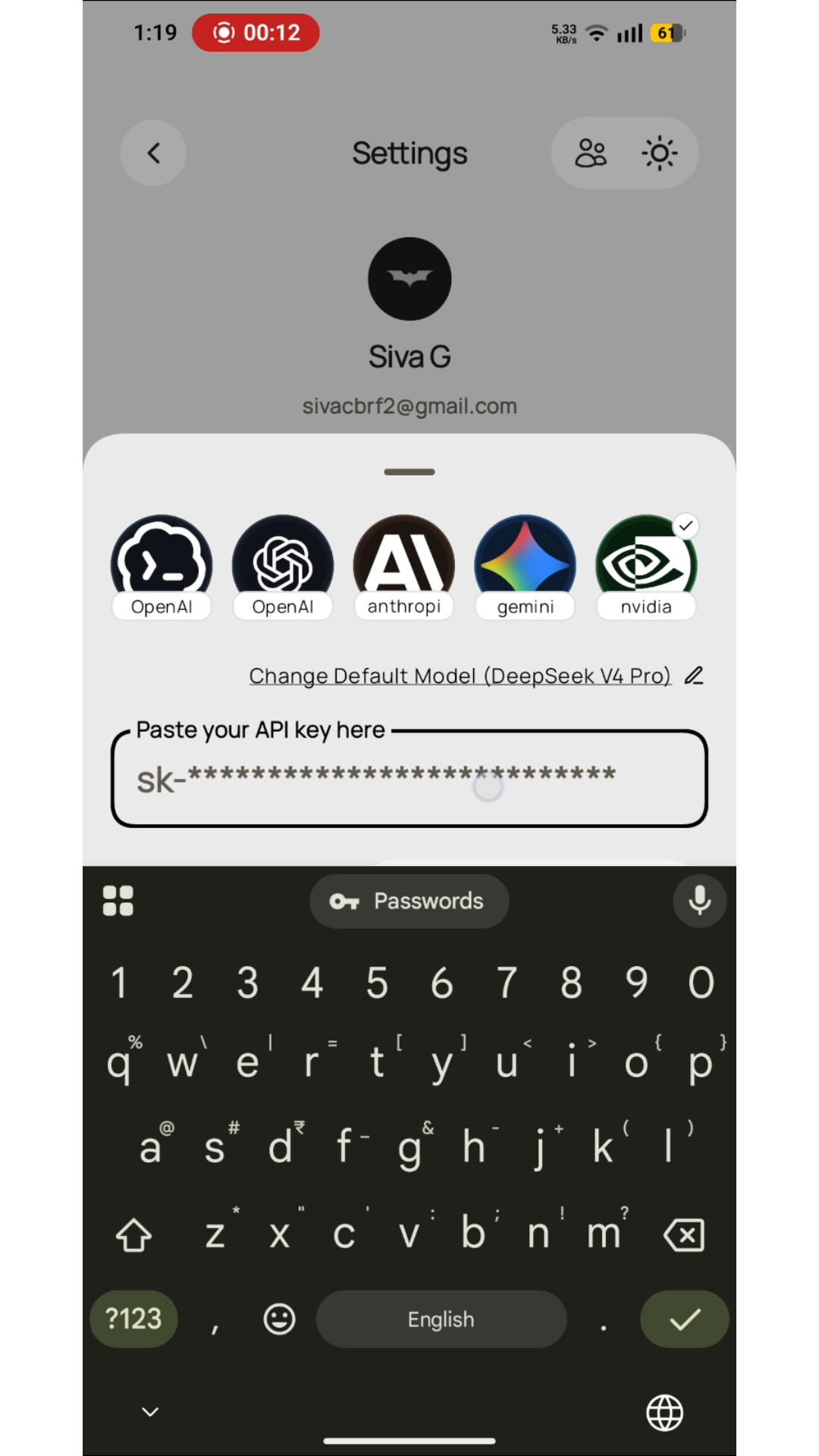
Mobile screenshot: selecting NVIDIA and pasting the API key in Supr settings.
Once the connection succeeds, your personal mobile agent setup is live on NVIDIA-hosted models.
Quick note on limits
This setup is useful for testing, casual workflows, and getting a mobile agent stack running quickly. Heavy usage can hit rate limits, and free endpoint availability can change over time.
Start with one workflow, confirm the output quality, then expand your agent setup once you know the model works for your tasks.
Frequently encountered problems
I'm unable to connect even with a valid API key
If your key looks correct but Supr still cannot connect, check these in order:
- Generate a fresh NVIDIA API key and try again. Older keys may be revoked, rotated, or tied to a previous session.
- Confirm the key is still active in NVIDIA Build API Keys and has not expired.
- Avoid repeated rapid retries with the same key. NVIDIA can temporarily throttle or block repeated attempts.
- Wait 15 to 30 minutes, then retry once with a fresh key.
If it still fails after one clean retry, disconnect and reconnect the NVIDIA provider inside Supr, then paste the new key again.
Support: hello@suprclaw.com